
 Kvs satish
Forgetting a Wi-Fi password always happens at the worst possible time. Maybe you’re setting up a new laptop, trying to connect a smart TV, or letting a friend hop on your network. You know you’ve used the password before, but your mind draws a blank.
The good news is that in most cases, the password isn’t really lost. Your devices quietly store it, and with just a little digging, you can pull it up in seconds. No resets, no calls to your internet provider, and no awkward guessing game with sticky notes and scraps of paper.
Let’s break down the simplest ways to instantly recover a Wi-Fi password, whether you’re on Windows, Mac, Android, or even locked out of your own router.
Why do Wi-Fi passwords feel so easy to lose?
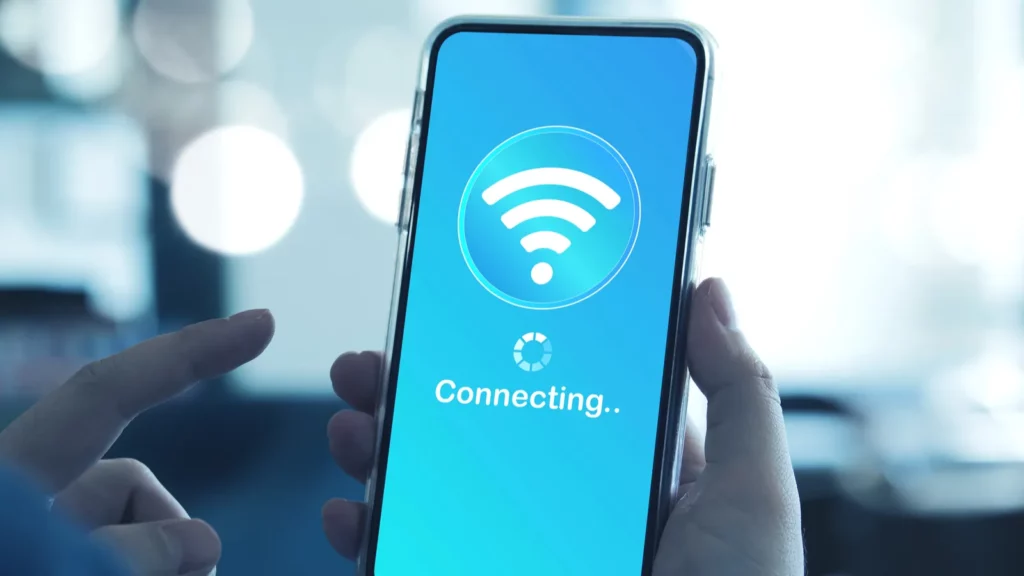
Here’s the problem. Most of us type in a Wi-Fi password once and then forget about it. Devices remember it, so we never need to. Months later, when we buy a new phone or invite guests over, we realize we can’t recall it at all.
Routers often come with a default password printed on a sticker, but if you’ve changed it for security reasons or misplaced the sticker, you may feel stuck. Luckily, the password is usually saved somewhere on your computer or phone.
The hidden trick on Windows computers
If your computer has connected to the Wi-Fi network before, Windows has already saved the login details. You just need to uncover them. The quickest way to see the password for your current network is through settings. Go to Control Panel, select Network and Internet, then Network and Sharing Center.
Click on your active Wi-Fi connection, choose Wireless Properties, and open the Security tab. Check the box labeled Show characters, and the password will appear.
But what if you want the password for a network you’ve used in the past? That’s where the command prompt comes in handy:
- Right-click the Windows icon and open Windows Terminal (Admin).
- Type netsh wlan show profile and hit Enter. This lists all the Wi-Fi networks your computer remembers.
- To see the password for one of them, type netsh wlan show profile “NetworkName” key=clear.
Look under Security settings for Key Content. That’s your Wi-Fi password. It sounds a little technical, but once you do it the first time, it feels surprisingly simple.
Here is a social media post that covers the same topic:
How can Mac users recover Wi-Fi passwords?
Mac devices keep Wi-Fi credentials tucked away in a built-in tool called Keychain Access. It’s basically a digital vault for every password you’ve ever used.
To find your Wi-Fi password:
- Open Spotlight Search and type “Keychain Access.”
- In the sidebar, click System and then Passwords.
- Scroll until you find your Wi-Fi network name and double-click it.
- Check the box for Show password. Enter your Mac login password to confirm.
Your Wi-Fi key will appear in plain text. You can copy it to share or just keep it noted somewhere safe.
The quick shortcut on Android phones
Most modern Android devices also remember your Wi-Fi password and will happily show it to you if you know where to look.
- Open Settings and go to Network & Internet.
- Tap Internet, then select your current Wi-Fi connection.
- Tap Share. A QR code will appear, and underneath it, you’ll see the password.
If you want to see passwords for older networks you joined, head to Saved Networks under the Wi-Fi menu. Select the network, tap Share, and you’ll see both a QR code and the password.
On Samsung devices, the process adds an extra step. You generate a QR code, save it as an image, and then scan it with Google Photos.
The scan reveals the password. It’s a little roundabout, but it works reliably every time.
What about iPhones and iPads?
Apple added an easy way to share and view Wi-Fi passwords in recent iOS versions. If you’re signed in with your Apple ID, all your devices sync Wi-Fi credentials through iCloud Keychain.
To view the password directly:
- Open Settings and tap Wi-Fi.
- Tap the “i” icon next to your connected network.
- Choose a Password and confirm with Face ID or Touch ID.
The saved password appears right away. You can also copy it to share with friends or paste it into another device.
When nothing else works, reset the router

Sometimes the password isn’t stored anywhere you can reach. Maybe you’re on a brand-new computer, or the old settings were cleared. In that case, your last resort is the router itself.
Before pressing the reset button, check the device for stickers. Many internet service providers print the default Wi-Fi name and password right on the hardware. If those details match what’s configured, you can reconnect immediately.
If not, you can log into the router to change or reset the Wi-Fi password. Connect a computer with an Ethernet cable, open a browser, and type in 192.168.0.1 or 192.168.1.1. Log in with the router’s admin username and password, often “admin” and “password” by default unless you changed it. From there, you can set a new Wi-Fi password.
If you can’t log in at all, the nuclear option is a factory reset. Press and hold the recessed reset button with a paperclip for 10 seconds. The router will reboot with its factory settings, including the original Wi-Fi password. It’s inconvenient—but it works every time.
Nothing helps? Watch this YouTube video, you might be able to find something worth it:
Small tips that make Wi-Fi management easier
Recovering your password is useful, but preventing the problem in the first place is even better. A few smart habits can save you time in the long run:
- Use a password manager so you always have a copy of your Wi-Fi key saved along with your other logins.
- Label your network clearly so you don’t confuse it with neighbors’ networks.
- Create a guest network with its own password if you often share Wi-Fi with visitors. That way, your main credentials stay private.
- Avoid resetting the router unless necessary; a reset wipes out all your settings, which can cause extra headaches.
Why does this trick feel so satisfying?
There’s a unique relief in uncovering a forgotten password without having to start from scratch. It’s a reminder that technology, when you know where to look, quietly works in your favor.
Instead of fumbling with sticky notes or calling your ISP, you realize the solution was right there in your device all along. And once you’ve done it once, you’ll never panic again when someone asks, “What’s your Wi-Fi password?”
Where does this leave us?
The simplest trick to instantly recover any Wi-Fi password isn’t about hacking or complicated tools. It’s about remembering that our devices already hold the keys. Windows, Mac, Android, and iOS all store Wi-Fi credentials, and with a few clicks or taps, you can bring them back.
So the next time you’re stuck offline, don’t stress. Look into your settings first. The password is probably waiting for you there. And once you recover it, maybe ask yourself—should this be the last time I forget it?
Recommended Posts:
This article was made with AI assistance and human editing.


